
CMES Virtual Computer Lab - Mac Set Up Instructions
Instructions for a Macintosh connection to the virtual CMES student computer lab environment.
revised 04/19/2021
Before you can begin, access must be granted to the resource. We encourage you to use the Campus Help Desk (801-581-4000 option 1) to generate a ticket for us with the following information: your full name, your UNID, your PI, and any specific class or software needs. Professors are encouraged to also contact the Campus Help Desk (801-581-4000 option 1) to generate a ticket for us with their class rosters to add students in bulk. Removal is the same.
What you will need
- Pre-authorized access to the resource as granted by UIT and your CMES Professor
- A home Macintosh computer with administrator access and reliable access to the internet
- A web browser, i.e. Safari
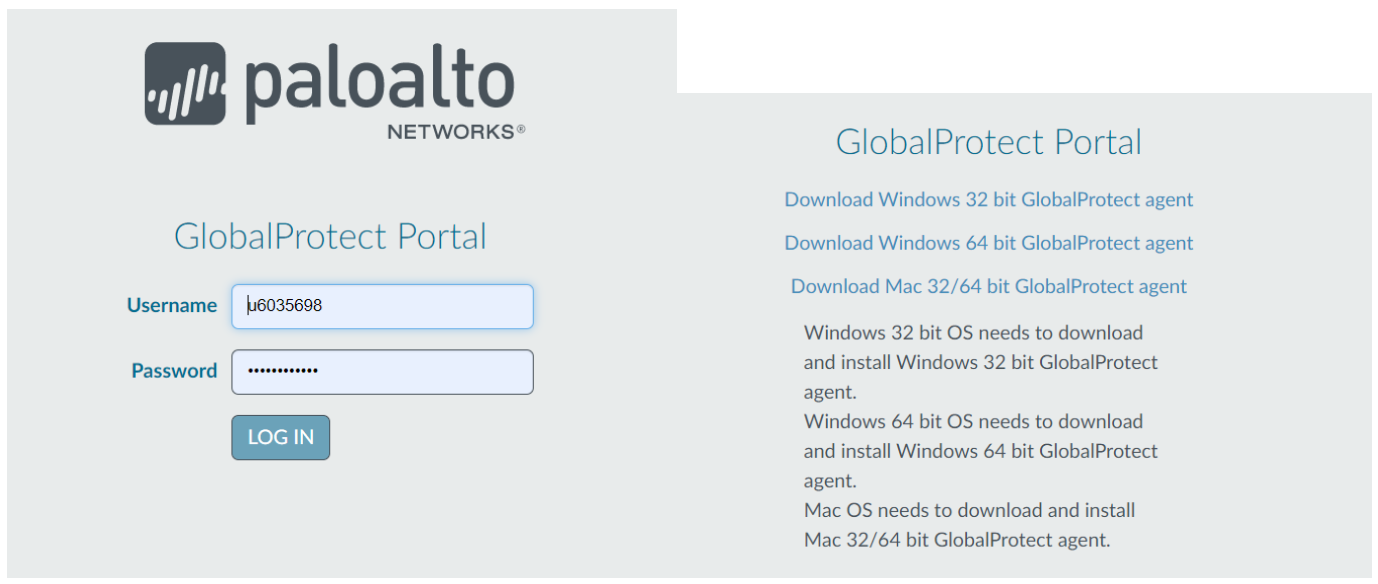
- Go to http://vpn.utah.edu, login using your uNID and download the GlobalProtect VPN Client and install it on your Macintosh computer.
-
Download and install the Microsoft Remote Desktop application for your Macintosh computer, available for free at the Apple App Store.
To begin the connection process:
1. Open GlobalProject and direct it to http://vpn.utah.edu
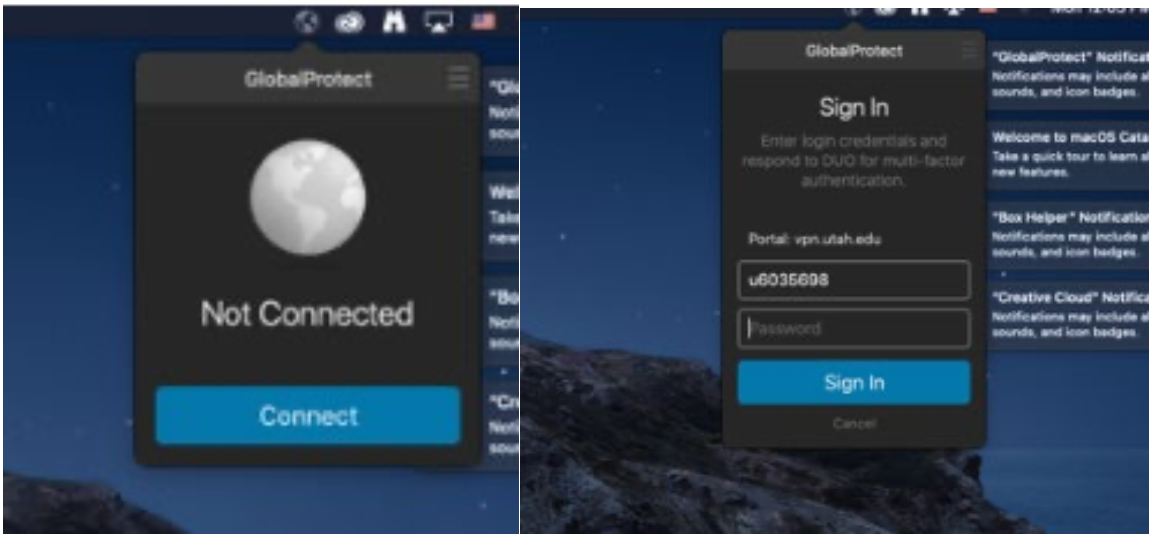
2. Complete the VPN sign-in process using your uNID and password.
3. Confirm DUO Authentication request before a timeout occurs.
Connect to the resource through your web browser:
1. Point your Safari web browser to the CMES Web Access webpage
2. Before logging-in, please review the NOTES on this log-in page. They may change at any time and this could affect your session. (Scheduled maintenance, cloud resources, etc.)
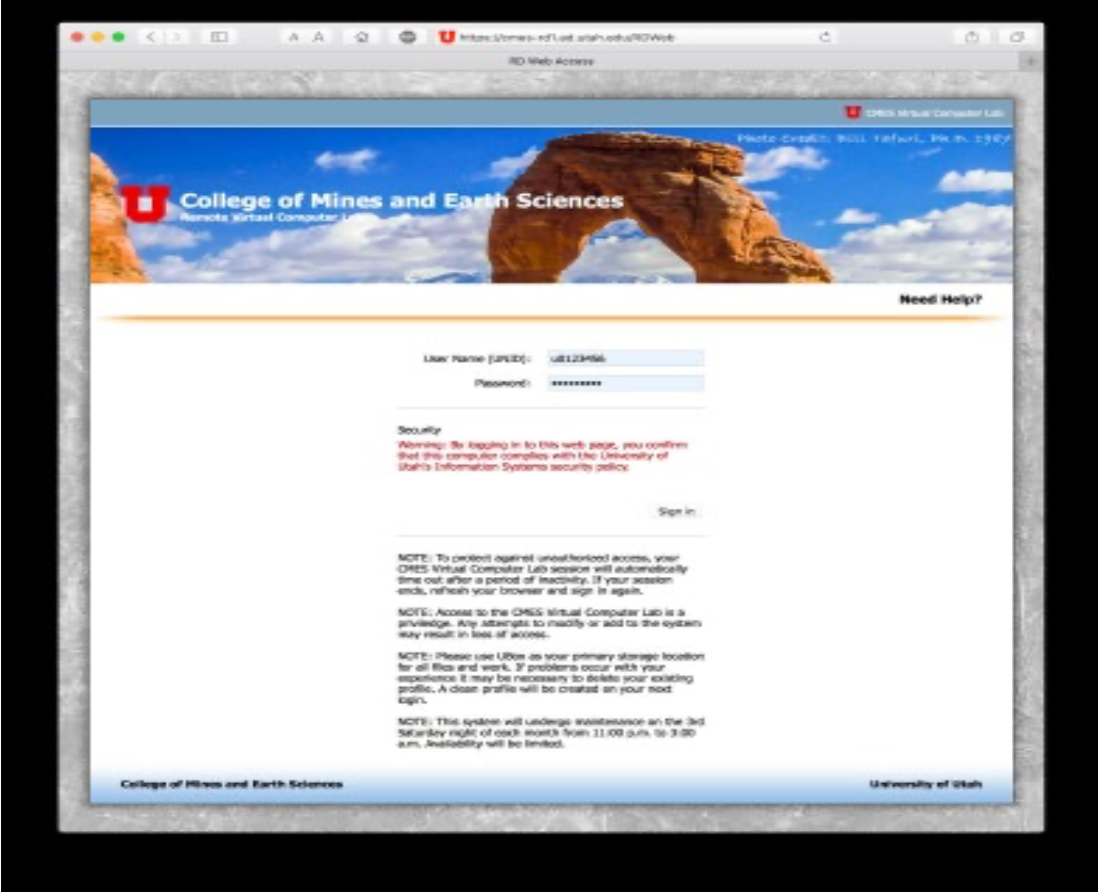
3. Enter your UNID and CIS password in the provided fields and click “Sign In”
4. Select and then surf into the folders as instructed by your Professor to access the desired software resource. (I will be using the application “GeoMapApp” located in the /General Apps folder for this example.)
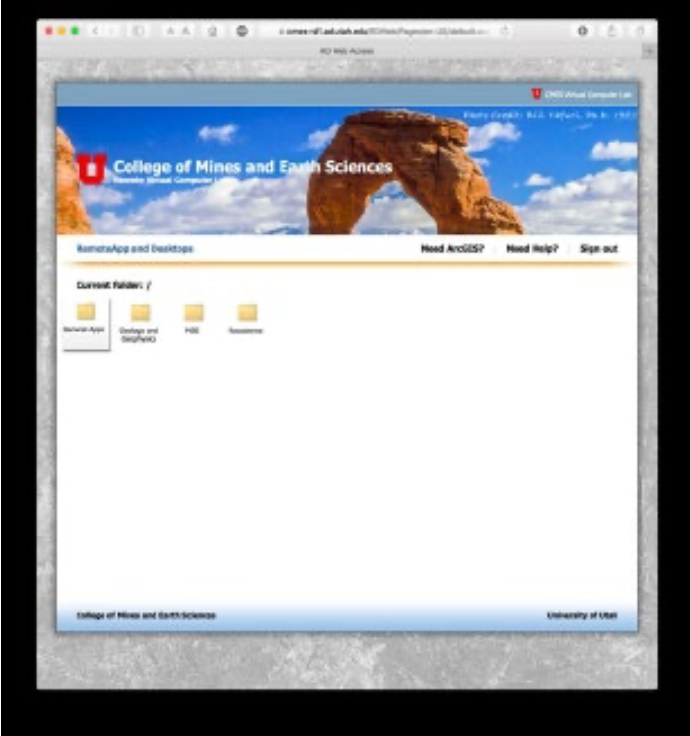
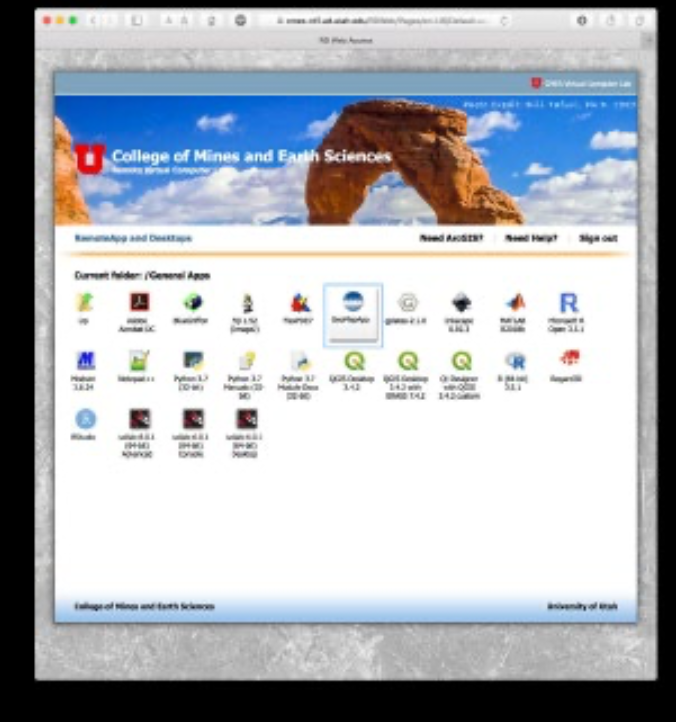
5. After single-clicking the “GeoMapApp” software application icon above, Safari will download a <cpub- GeoMapApp-CMES_Labs-CmsRdsh.rdp> file that can be opened with the Microsoft Remote Desktop application. (Check your Safari settings to determine your Safari “File download location:”).
6. Locate and launch the .rdp application with the Microsoft Remote Desktop application
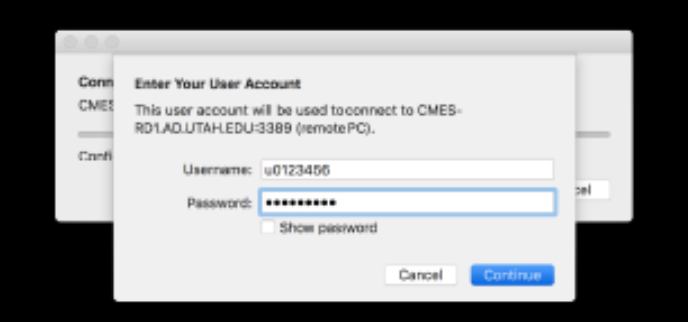
7. Enter AD\UNID (example: AD\u0123456).
8. Enter your CIS Password, then click “Continue.”
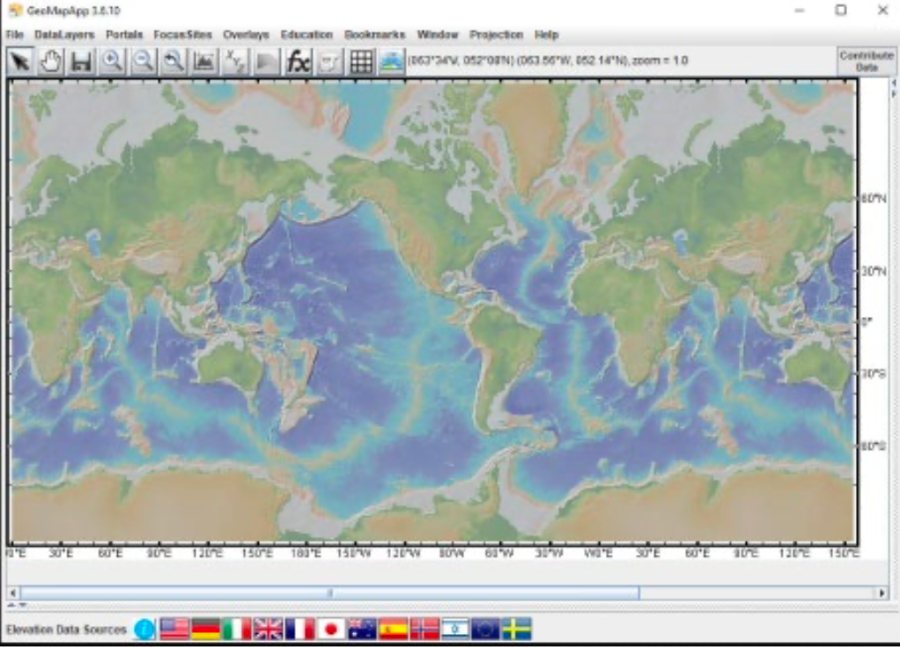
9. To quit the application, choose the application’s File pull-down menu item “Exit”.